
With the change in branding from Leanbe to ProductMix in January, 2025. Existing customers that are using the Custom Subdomain feature prior to the change in domain and branding should update their DNS settings for their custom Domain.
What is Changing and How Does this Impact My Portal? #
Since we moved from the leanbe.ai domain to productmix.com, if you are making use of the custom subomain option to have your Portal accessible at your own domain (such as roadmap.mywebsite.com), you originally set a DNS entry for roadmap.mywesite.com to point to ProductMix. This value should be updated to point to the new name, ProductMix.
For the short term, your portal should NOT be impacted and will continue to work as expected during the name change and domain move. However, in the future – we may disable support for the previous domain with regards to SSL certificates or other Custom Subdomain functionality for the old ProductMix domain, and we ask that our userbase update their DNS settings to the new Domain to avoid any issues in the future.
Who Needs to Perform this Update? #
Anyone who is using the Custom Subdomain feature of their portal prior to January 31st, 2025 and has added the DNS entry for their custom subdomain into their domain registrar with a value of: custom.leanbe.ai will need to update this value. See an example here:
How Do I Make this Change? #
Follow the step-by-step directions below:
- You’ll need to access your DNS settings for your domain and locate the CNAME entry that has your custom subdomain. If you need help locating this, contact your Domain provider or Hosting provider wherever your DNS is managed for assistance. Locate the CNAME entry in your DNS with the name of your custom subdomain and the target/value of custom.leanbe.ai, with an example shown here:

- Once you have found this entry, you’ll want to change the target value to: custom.productmix.com. An example is shown here:

- Save that update in your domain registrar.
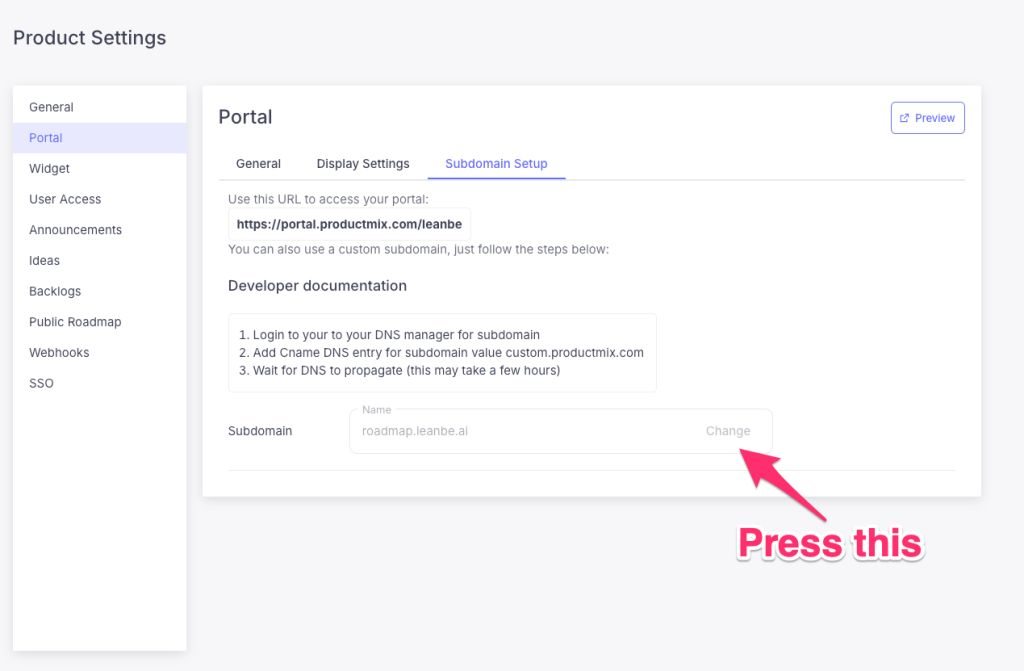
- Go to your Product Settings inside of Product Mix, then select the “Portal Settings” and go to the “Subdomain Setup” tab.
- Click on the “Change” button within the subdomain field as shown here:
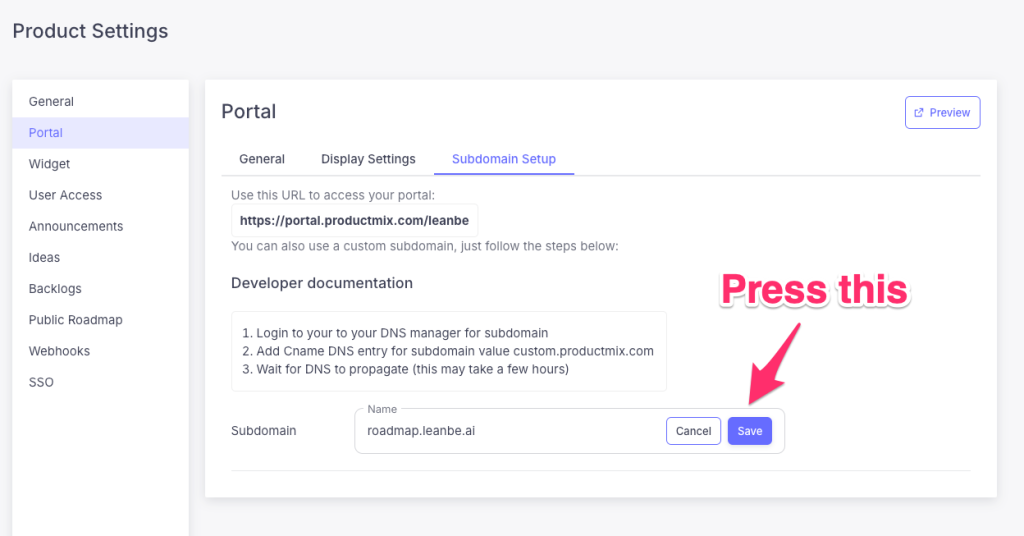
- Click on the “save” button to update your entry and save your settings. This step to re-save your subdomain is necessary to trigger some back-end steps on our end to ensure your portal will work with SSL properly.
That’s it! You’re done. If you encounter any issues with your portal once these changes are made, please don’t hesitate to reach out to our support team at: [email protected].